

Quick Start
Ship Your First Task
Describe a change, let an agent build it, try it in the preview, then review and merge.
- Describe the change
Describe a small change in plain language, as you would to a colleague. Use New session in the left sidebar, or open Team board and click Create. For example:
"Create a sitemap for visitors. Add the link to the sitemap to the left of the contact us link on the menu bar."
On the Team board, click Create, describe the change, then press Start. In the board's composer, the default Start agent mode launches an agent immediately. To add the task without launching, select Create only from the dropdown. The board starts it in Todo. List defaults to Backlog. The composer remembers your mode choice.
- Start the build
Press Build on New session, or Start in the board's composer, to create the task and begin an agent session. Build opens the session right away. The task status updates automatically as work progresses.
Your sessions, and the sessions you collaborate on, are listed under Recent in the sidebar. From the board, open a session by clicking the agent logo on the task card, or open the task and click Open Session. Once the agent finishes, the logo opens its pull request instead.
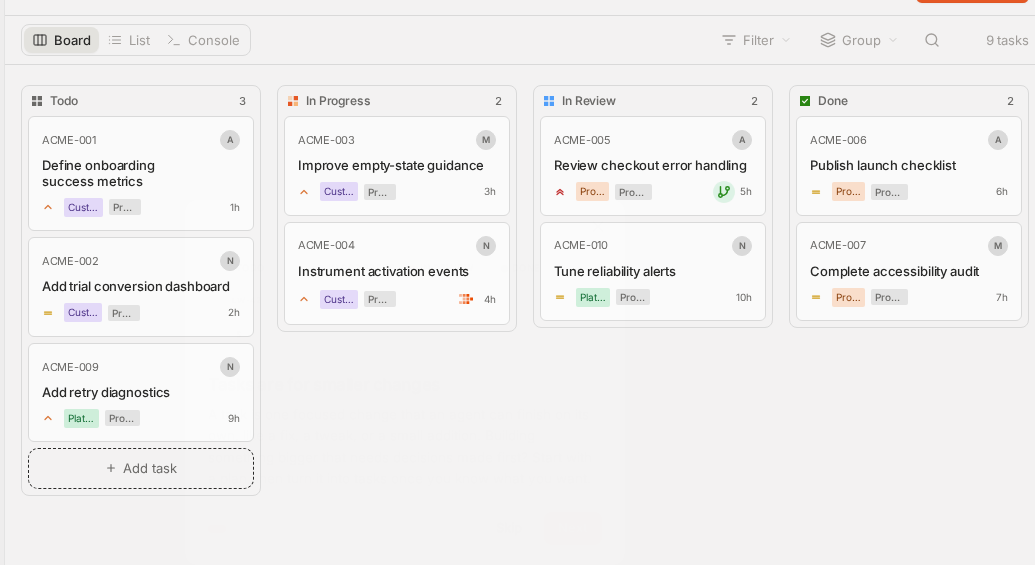
When the task moves to In Progress, click the agent logo to open the session. - Preview live and steer the agent
The agent works in a safe cloud copy of your product. It streams its progress and shows a live preview as it works.
You do not need to watch. To redirect the agent, send a follow-up such as "put the field below the email field". The agent adjusts to your instructions.
- Review your changes
Try the requested flow in the preview and check the result against your task. Send follow-up instructions for anything that needs changing. The agent updates the same task and preview.
The agent opens a pull request before checks and verification. Open the task's Review Hub tab to check reviews and readiness. See Review & Merge for more.
Nothing is live until mergeThe preview is a private copy. Merging puts the change on its base branch. Your repository’s deployment pipeline determines when customers receive it.
- Merge
The finished work is a pull request: the change, packaged for approval. Whoever holds merge rights on your team reviews and merges it. If you'd like to hand the session over to someone to help review or merge, assign the task to them with the assign control on the task.
 agent logo on the task card, or open the task and click Open Session. Once the agent finishes, the logo opens its pull request instead.
The workflow
Every task moves through the same loop: describe, build, try the preview, review, then merge. Merging updates the base branch. Deployment follows your repository’s release configuration.
Next
- Plan Your First Feature: use a plan when the change is bigger than one task.
- Many Tasks, One Base: run several changes at once.