

For Your Engineer
MCP
Use the Model Context Protocol to connect Gleamrun agents to 1,000+ apps, including Figma, Notion, and Granola. You can also control Gleamrun from your own MCP client.
Overview
MCP runs in both directions:
- Connectors: attach MCP servers to a stack to let its agents use Figma, Sentry, PostHog, and 1,000+ other apps. See the connector configuration below.
- The Gleamrun MCP server: our own endpoint at
/mcp, so your MCP client can drive Gleamrun. Covered in The Gleamrun MCP server. - WebMCP: the same tools published to the AI agent in your browser, on every Gleamrun page you have open. Nothing to install. Covered in In your browser.
The Gleamrun MCP server
Connect Claude Desktop, Claude Code, Cursor, or another MCP client to manage your Gleamrun board. You can list, create, and edit tasks, read and post comments, open plans, and launch agent sessions.
The client calls a public endpoint as you. These calls do not use a sandbox or a Gleamrun agent.
claude mcp add --transport http Gleamrun /mcpClients that take a config file instead of a command:
{
  "mcpServers": {
    "Gleamrun": {
      "type": "http",
      "url": "/mcp"
    }
  }
}- Add the server
Point the client at
/mcpwith the HTTP (Streamable) transport. There is no token to paste and no header to configure. - Sign in when the client asks
The endpoint returns an OAuth challenge when the client is not authenticated. Your client opens Gleamrun's consent screen in the browser. Approve the connection. The client stores the token.
- Call the tools
Ask your client to perform the action you need. The server publishes one tool,
Gleamrun_api, for every endpoint available to agents plus task creation. The tool's description lists the supported paths.
Use an Authorization header
If your client cannot complete OAuth in a browser, open Workspace Settings → Gleamrun MCP and create a named access token. Add it to every request as Authorization: Bearer <token>. The token is shown once, so copy it before leaving
the page.
{
  "mcpServers": {
    "Gleamrun": {
      "type": "http",
      "url": "/mcp",
      "headers": {
        "Authorization": "Bearer lsat_..."
      }
    }
  }
}Each Gleamrun deployment serves /mcp and has its own data, sign-in, and tokens.
Add a separate server entry with a distinct name for each deployment you use.
For staging, use https://staging.gleamrun.app/mcp.
Calls use the same API as the app, with your account and workspace role. Tokens are bound to the approved workspace and can reach all its repositories. Each call checks your membership and rejects requests for another workspace.
To access another workspace, authorize it and add a separate server entry. Revoke a named access token under Active tokens on the same settings page to stop calls with it immediately.
This endpoint lets a client edit tasks, post comments, and start agent sessions, as well as read data. Connect only clients you trust. Review their proposed actions before approving them.
In your browser
WebMCP lets your browser’s AI agent call tools that a page publishes. While signed in to a Gleamrun page, ask the agent to open or rename a task, post a comment, or open the board. The agent calls Gleamrun directly.
Three tools are published:
Gleamrun_api: the same tool the MCP server above publishes, covering the same endpoints. It runs as you, on the session you are already signed in with.Gleamrun_current_page: what you are looking at right now, including the workspace and task the page resolves to. It is how the agent knows what "this task" means.Gleamrun_navigate: moves your current tab to a Gleamrun page, so the agent can show you what it found. It navigates only; it never clicks anything for you.
Gleamrun needs no toggle, key, or installation for WebMCP. A compatible browser receives the tools when the page loads. Browsers without WebMCP download nothing extra and are unaffected.
Your browser controls which agent can see the tools and when a call requires your approval, as it does on other sites.
WebMCP is experimental and off by default. Chrome requires the site to join an origin trial.
Without enrollment, document.modelContext is unavailable, so pages cannot publish tools.
To try WebMCP yourself, enable chrome://flags/#enable-webmcp-testing and relaunch Chrome.
Until WebMCP is available, the tools are inactive and data-webmcp reads unsupported.
To check whether a page published its tools, inspect the root <html> element’s data-webmcp attribute in devtools. You can also run document.documentElement.dataset.webmcp in the console:
published: the tools are live, and your browser's agent can call them here.unsupported: this browser has no WebMCP. Nothing is wrong with Gleamrun, and this is what almost every browser reports today.signed-out: no session, so there is nothing to publish. Sign in.detecting: still looking, for the few seconds after the page loads.error: your browser has WebMCP but publishing failed. Worth reporting to us.
When the state is published, inspect data-webmcp-api for the interface used. current means document.modelContext.registerTool(). legacy means the superseded navigator.modelContext.provideContext() interface, which Gleamrun supports as a fallback.
An agent on the page has the same read and write access as the MCP server. It can edit tasks, post comments, and start agent sessions with your account and role. Approve its calls as you would any other agent's. Sign out of Gleamrun if you do not want that browser’s agent to retain access.
Connectors
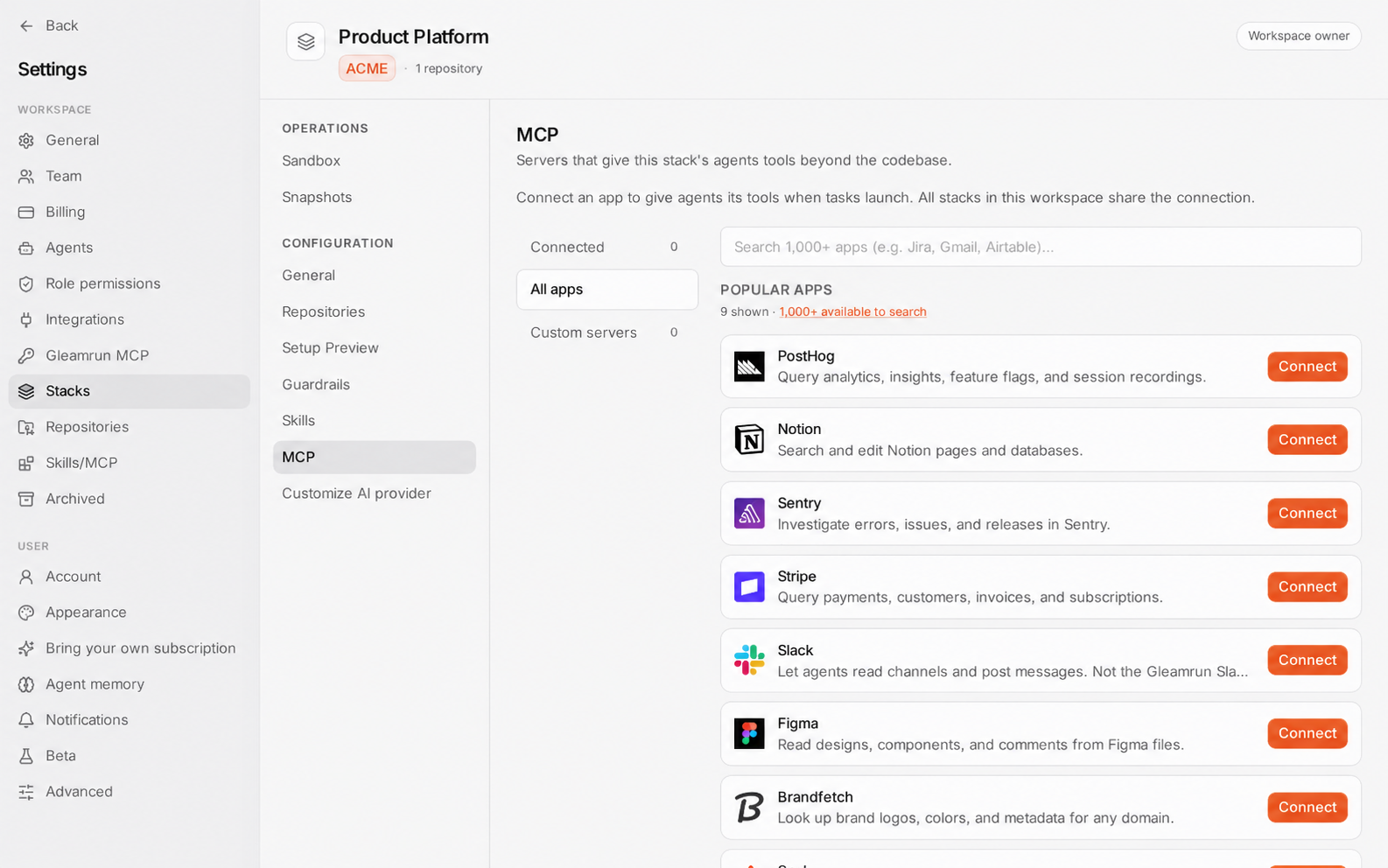
Configure the MCP servers available to Gleamrun agents for each stack. Open Workspace Settings → Stacks, choose a stack, and select its MCP tab. You must be a workspace owner or admin to manage MCP. To change them while starting a session, go to New session, open MCPs in the composer's options menu, and choose Manage MCPs. Use these views:
- Connected: apps with an active connection, each with a per-stack on/off toggle.
- All apps: a curated catalog (PostHog, Notion, Sentry, Stripe, Slack, Figma, Brandfetch, Grafana, Datadog) plus a search across 1,000+ apps powered by Composio.
- Custom servers: bring your own MCP endpoint over HTTPS.
All apps
- Find the app and click Connect
Search for the app in All apps, the default view. Click Connect and complete the provider's consent flow. Apps such as Notion and Slack use OAuth. Apps such as Sentry and PostHog use an API key form.
- Toggle it per stack
Connect Sentry once for the workspace. Every stack can then use the connection. In each stack's Connected view, use the toggle to choose which apps its agents can use.
- Agents pick the tools up automatically
Tools attach at the next task launch or Chat turn without a restart or rebuild. A session already running picks up the change on its next turn.
If a key is revoked or a grant expires, the MCP tab shows the app as no longer connected. Click Connect to authorize it again. Apps connected before the move to Composio show Reconnect because their sign-ins could not be transferred. Their tools remain unavailable until you reconnect them.
Composio stores and refreshes tokens for catalog apps. Gleamrun records only which apps each stack enables and never stores those tokens. Custom server headers are different: Gleamrun stores them as write-only secrets.
Remove detaches an app from the stack. Removing it from the last stack also deletes the workspace connection.
Book a 15-minute call and we'll wire up your connectors together, or email support@gleamrun.app.
Custom servers
Under Custom servers, click + Add server. Enter a name and URL. Select HTTP (Streamable) or SSE (legacy) as the transport. Add authentication headers if needed.
- Use HTTPS: URLs that point at localhost or resolve to private addresses are rejected.
- Prefer HTTP (Streamable): Gleamrun relays SSE (legacy) servers to every agent, but Test tools cannot check them.
- Headers are write-only: values are stored as secrets and never shown again. When editing, leave a header blank to keep its stored value.
- Verify with Test tools: click Test tools on the saved
HTTP server row. It runs an MCP handshake and lists the server's
tools/listresponse. This test does not support SSE servers. - Scope is per stack: custom servers belong to one stack; catalog app connections are workspace-level.
The Figma MCP
Connect Figma through the catalog's Figma app. Agents read your actual design files (frames, components, variables) instead of guessing from screenshots. Gleamrun no longer offers a separate custom Figma server.
- Connect the Figma app
In the stack's MCP tab, open All apps, find Figma, and click Connect. Complete Figma's sign-in. Composio stores the grant and refreshes it, so you never paste a token.
- Turn it on per stack
The connection is workspace-level. Turn on the Figma toggle in the Connected view for each stack whose agents need it.
- Drop Figma links in tasks
Paste a Figma frame URL into a task description and the agent fetches the real design (layout, tokens, component names) and implements against it. See Figma to Code.
What agents see
Each connector attaches at launch under its server name with two tools: search_tools finds the app's tools, and call_tool runs one. Gleamrun
checks the session's tool permissions on every call. Use the server name to trace
agent tool calls back to the connector:
mcp__<server>__search_tools         # find the app's tools by name or description
mcp__<server>__call_tool            # call one tool by its exact name

mcp__composio-figma__search_tools   # managed app (server name is composio-<slug>)
mcp__my-server__call_tool           # custom server named "my-server"
Use cases
Example Chat thread: a teammate asks whether anything is failing in production since the deploy. Chat queries Sentry, reports a new TypeError in checkout/confirm with 214 events in the last hour on Safari, traces it to missing optional chaining on applePaySession, and proposes a fix task.
| Connector | Try asking |
|---|---|
| Sentry | "What's the top unresolved error this week?" The agent proposes a fix task with the stack trace attached, ready to run. |
| PostHog | "What's the funnel conversion on the new signup flow?" Agents can check whether the feature they just built is actually being used. |
| Grafana | "Did p95 latency change after yesterday's deploy?" during Chat-driven incident triage. |
| Figma | Paste a frame link into a task: "Implement this settings page". The agent reads real spacing, colors, and component structure. |
| Stripe | "Which webhook events do we actually receive?" grounds payment work in live config. |
Enabled connectors are available to task agents, Chat, and Plan Mode. Chat and the Slack bot cannot edit your code, but attached MCP tools can include write actions.
In read-only sessions, Gleamrun checks every MCP tool call against the stack's read-only allowlist, on every model. Agents that write code can call every attached MCP tool, including write actions. Review this access before enabling a connector. See Guardrails.