

Working as a Team
The Shared Board
Track task status and ownership, and open live agent sessions from the board.
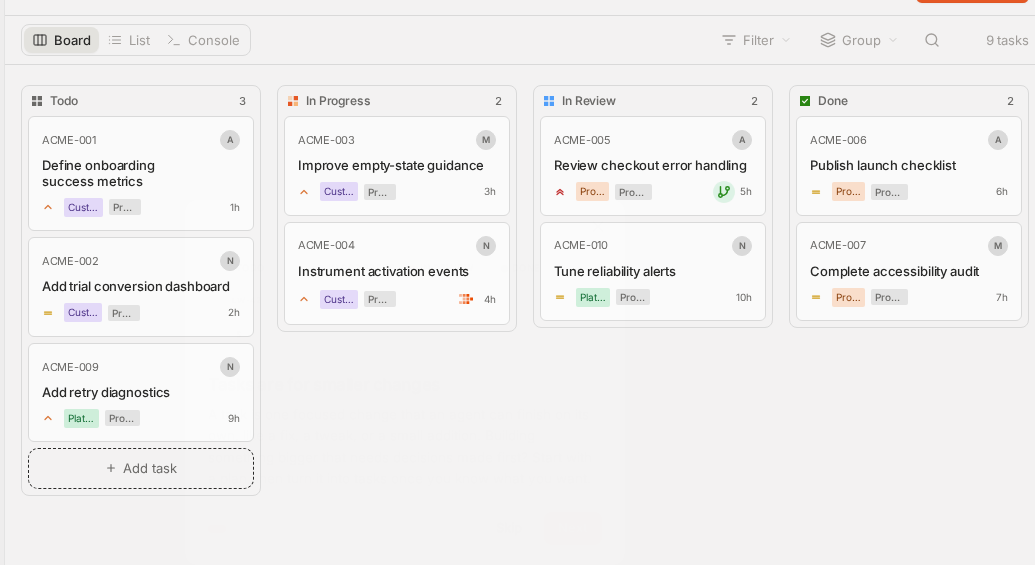
Reading the board
- Columns are status: Todo → In Progress → In Review → Done. Cards move on their own: an agent starting work moves its card to In Progress, an open non-draft pull request to In Review once the coding agent is idle, a merge to Done. You can still drag a card to set status by hand.
- Backlog isn't on the board: the board only shows work in motion. Ideas parked in the Backlog live in the list view (generate them in create mode).
- Avatars are people: the avatar on a card is its owner, and presence on the top right means that teammate is online right now.
What a card tells you
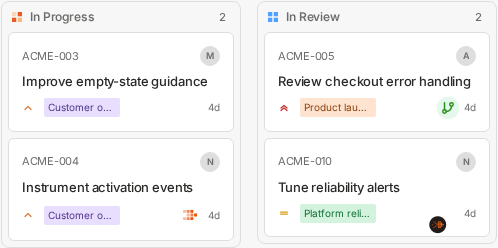
- ID, title, and time since last activity: use the timestamp to find tasks that need attention, such as work in In Progress with no recent activity.
- The small icons are shortcuts: the avatar shows who owns the task. When an agent is working, the Gleamrun logo appears. Click it to open the live session and watch or steer. The other icons open the work itself, like the pull request or the preview.
- Click anywhere else to open the task: a card opens its agent session, or, before an agent has run, the task with Start agent. Press Enter on a selected card to open the task details instead.
Filtering
Filter the board by people, projects, stacks, or whether an automation started the work.
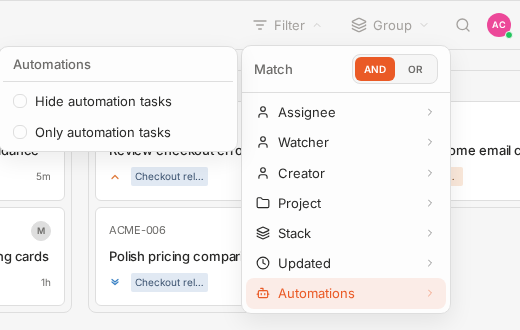
- Assignee: just your tasks, or a few teammates in your squad.
- Watcher and Creator: tasks you follow, or the ones you filed, whoever owns them now. People invited to a task's session become its watchers.
- Project: create projects to tag tasks by initiative, feature, or theme.
- Stack: only tasks on the stacks (sets of repositories) you pick.
- Updated: only tasks updated in the last 24 hours, 3 days, 7 days, or 30 days.
- Automations: choose Hide automation tasks or Only automation tasks. This filter narrows the result regardless of Match.
- Match: choose AND to require every filter above, or OR to accept any of them. Search terms and the status, complexity, and dependency filters narrow the result in either mode.
- Group: arrange tasks in rows by person or project. Group by person to see each teammate's work together.
- Search: match tasks whose title or description contains every word you type, or an exact task number.
The task count on the right tells you when a filter is hiding something. Cards and grouped lanes put recently active work first.
Scroll to the bottom of a column to load older tasks. In a grouped board, use Load more at the end of each lane's Done column.
Saved views
The view name above the board opens the view menu. All Tasks and For Me are built in. After you change filters, choose Save changes to update the current saved view or Save as new view to keep the filters under a name and an optional description. The description shows under the view name. Use Edit view to rename a saved view or change its description. Star or delete saved views from the same menu.
Board appearance
Open User Settings → Appearance to enable Collapsible Board Columns or Hide Card Preview Icon. Both settings are off by default.
When an agent waits for an event, its card shows a waiting indicator. Open the session to inspect the wait. A red agent error icon exposes its message on hover or keyboard focus.
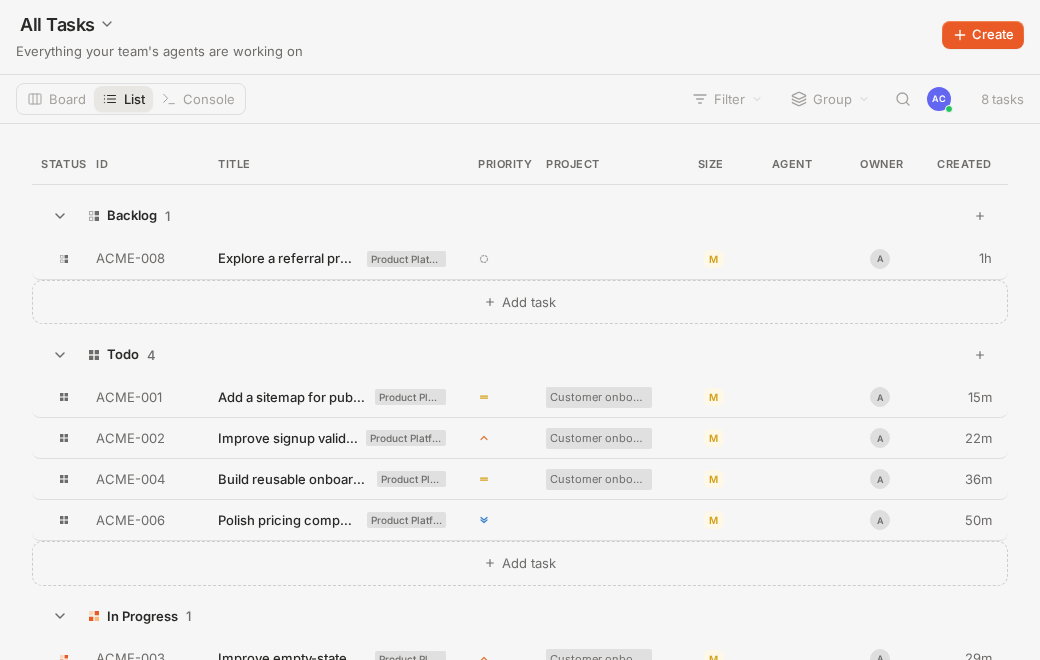
The list view
Select List to see rows grouped by status, in board order. Use this view for triage and to review Backlog tasks, which the board excludes. The Created column shows time since last activity. If a task is missing, check Backlog and clear any filters that could hide it.
Owners and handoffs
Each task has one owner responsible for steering it to completion. @mention a teammate to involve them while keeping ownership. Use Change assignee to transfer ownership. The previous owner remains a watcher.
Find anything with the command palette
Press ⌘ K on macOS or Ctrl K elsewhere. Search by task title or reference, plan, stack, person, guide, or documentation page, then press Enter to open it. Use the palette when you know the name of what you need; use Board filters when you need to compare a set of tasks.
Arrow keys move between cards; Enter opens one.
C creates a task, Shift+A assigns it to you, and Shift+T / P / R / D sets status (Todo, In Progress, In Review, Done).
Press ? (Shift+/) for the full shortcut list.
Next
- Many Tasks, One Base: run several tasks in parallel.
- Steering Agents Together: watch and redirect any running agent.
- Review & Merge: see who approves what.