

Working as a Team
Workspace & Team Administration
Use Workspace Settings to manage membership, shared connections, billing, and the resources every stack can use.
Open Workspace Settings
Open the user menu at the bottom of the sidebar and choose Settings. Settings opens on General. Owners and admins can change shared configuration. Members can see the settings relevant to their work, with restricted actions shown as read-only or hidden.
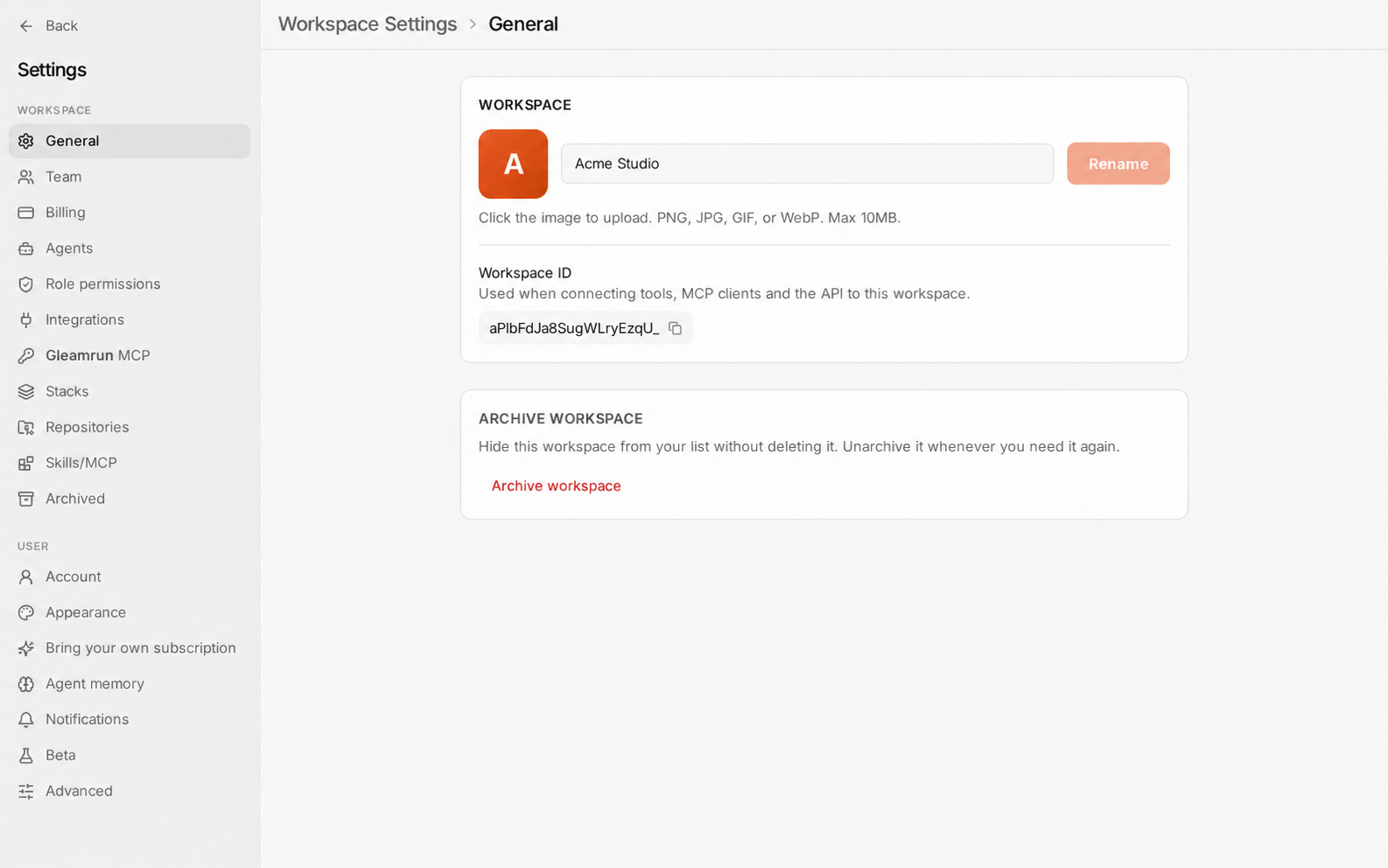
What each section controls
| Tab | Use it for |
|---|---|
| General | Workspace name, image and ID, and archiving or leaving the workspace. |
| Team | Invite people, change roles, and remove members. |
| Billing | Manage the plan, seats, credits, payment details, and invoices. |
| Agents | Configure agent commit identity, the workspace's Claude credentials under AI provider access, and network egress where available. These settings govern agents and their sandboxes across every stack. Your personal Claude, Codex or OpenRouter subscription is linked under User Settings to Bring your own subscription instead. This tab is available to owners and admins. |
| Role permissions or Merge policy | Set rules for opening pull requests, required review agents, and which review findings block merging, by role or named member. Owners and admins manage these rules. When a workspace runs one policy across all stacks, the section is Merge policy: one workspace-wide policy for everybody, roles, and people. See Merge policy. |
| Gates (Approvals beta) | Choose approvers, grant modes, expiry, and notification channels. See Gates and approvals. |
| Integrations | Connect shared services such as GitHub, GitLab, Bitbucket, Slack, Microsoft Teams, Telegram, Linear, and Jira. |
| Gleamrun MCP | Create access tokens for external MCP clients that connect to Gleamrun. |
| Stacks | Open the stacks list to configure repositories, previews, guardrails, skills, and MCP for each stack. |
| Repositories | Points you to the stacks, where repositories are added, removed, and configured. |
| Skills/MCP | Points you to the stacks, where agent skills and MCP connectors are configured. |
| Archived | Restore deleted tasks. This tab is available to owners and admins. |
| User section | Manage your personal settings: Account, Appearance, Bring your own subscription, Agent memory, Notifications, Beta, and Advanced (Review Hub follow-ups). Account includes Preferences for the agent, which guide Claude and Codex task agents when you message them in a task. These preferences apply in every workspace and take priority over Agent memory. Change them in Account settings or ask the agent in chat. Gleamrun sends the text only to the agent, inside the speaker block, and tells the agent not to reveal it. Agent memory records what Gleamrun agents, in tasks and Chat, remember about working with you in this workspace. |
Invite people and set roles
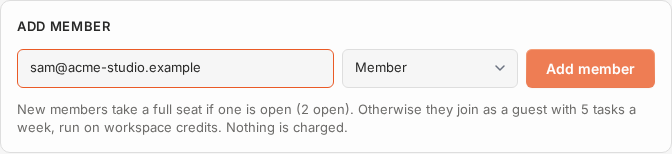
- Open Team and enter an email address or GitHub username.
- Choose the role the person needs.
- Press Add member. Someone who already has a Gleamrun account joins at once. Anyone else gets an invite. The Free plan includes 1 user, so a Free workspace must upgrade to Pro before it can add someone. On Pro, a new member takes a full seat if one is open, otherwise a free seat with a weekly task limit; nothing is charged.
On Pro, the Team tab shows how many full seats are used and who is a guest (on a free seat). Owners and admins can change a member's seat from the role menu on their row: Full seat when one is open, or Guest to free one up. See Free seats.
Use the least powerful role that lets someone do their work. Merge permissions are separate from whether a person can create tasks or steer agents; see Guardrails & Roles.
Single sign-on
Gleamrun support sets up SSO with your identity provider, such as Okta; there is no SSO page in Workspace Settings. Once SSO is enforced, members sign in with Continue with SSO and the workspace short name, or with the workspace's SSO link. Until they do, they cannot use Gleamrun in a browser, in this workspace or any other. Sign-in lasts 12 hours. Invite members by the work email their identity provider sends. A member who cannot use SSO can choose Sign out or Leave workspace on the SSO sign-in page.
Repositories and stacks
The workspace records connected repository accounts. Each stack decides which of those repositories belong together and which branches and folders agents may use. Add or move repository membership from a stack's Repositories tab. See Codebase & Preview Setup.
Shared connections
Workspace integrations receive events and let members act from other tools. Only connect an account whose organization and repositories match this workspace. The Integrations Overview explains ownership and setup for each service.
Network egress
Egress controls sandbox connections to external services. Direct egress is the default. Shared or dedicated egress can provide stable outbound addresses for a vendor’s allowlist.
The setting covers every stack. New task sandboxes use it after their stack’s snapshot rebuilds. Coordinate the change with the person who manages the destination firewall.
Reassign owned automations and check shared connections first. Removing someone can leave an unattended workflow without a valid run-as identity or personal provider connection.
Restore deleted work
Owners and admins can open Archived to restore deleted tasks. Restoring a task also brings back any sub-tasks deleted with it. If a task is not listed, contact support with the workspace and task reference.